
Level Up Your Live Stream Audio: A Musician's Guide
In today's digital age, live streaming is more than just a trend; it's a vital platform for independent musicians to connect with fans, share their art, and grow their careers. While captivating visuals draw an audience in, it's the live stream audio quality that keeps them engaged and coming back for more. Poor sound can quickly turn off even the most dedicated listeners, making your performance feel unprofessional.
At TunePact, we understand the challenges indie artists face, especially when it comes to producing high-quality content on a budget. This comprehensive guide will walk you through everything you need to know to dramatically improve your live music audio, transforming your home studio or small venue into a professional-sounding broadcast space. Get ready to impress your audience and make your music shine!
Crafting Your Streaming Audio Setup for Live Music
Before you even think about mixing, a solid streaming audio setup is your foundation. Investing in the right gear, even affordably, can make a world of difference in your overall sound quality.
Essential Equipment for Live Stream Audio
To capture your best performance, you'll need a few key pieces of equipment. First and foremost are microphones. For vocals or acoustic instruments, a good condenser microphone can capture rich detail. For louder instruments or live band setups, dynamic microphones are often more robust and less prone to feedback. If you plan on moving around a lot, a lavalier mic offers hands-free convenience, though often with a slight compromise on fidelity.
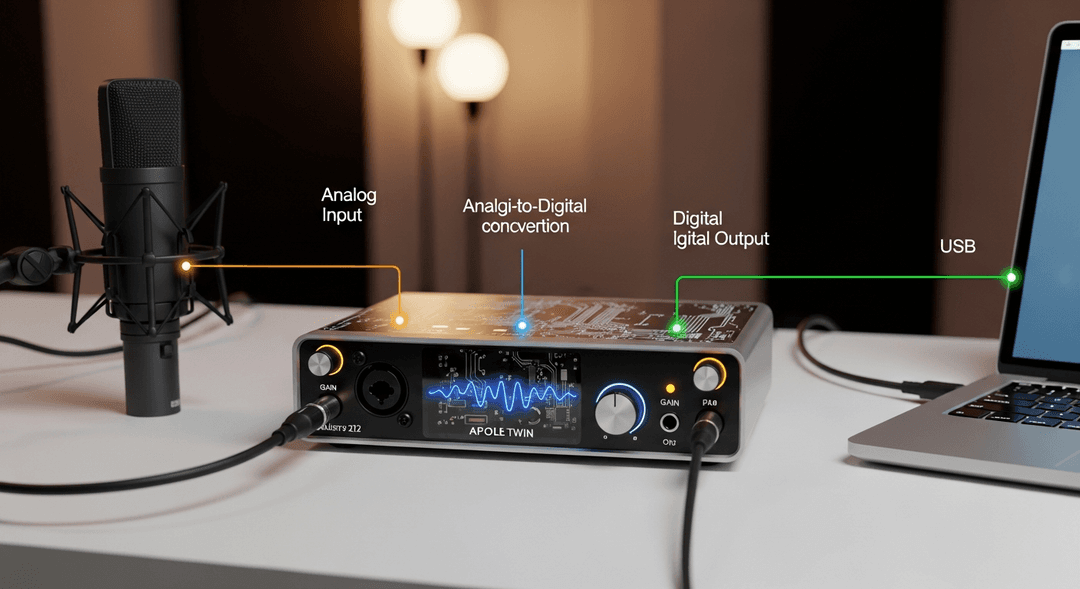
Beyond microphones, an audio interface is crucial. This device converts the analog signal from your mic and instruments into a digital signal your computer can understand. It also provides phantom power for condenser mics and often includes preamps for a cleaner signal boost. Don't forget high-quality headphones for accurate monitoring and reliable cables to ensure a clean signal path. For recommendations on these vital components, check out MusicRadar's guide on the best audio interfaces for streaming.
Understanding Audio Interfaces and Mixers
An audio interface acts as the bridge between your physical instruments and your computer. It houses preamps to boost your microphone signal and analog-to-digital converters (ADCs) to translate sound waves into digital data. This process is fundamental for clear, high-fidelity live stream audio.
If you have multiple microphones or instruments, an external mixer might be beneficial. A mixer allows you to combine and adjust the levels of several audio sources before sending a single, balanced stereo signal to your audio interface or directly to your streaming software. This gives you greater control over your sound, ensuring each element of your performance is heard clearly without overwhelming others. Always pay attention to gain staging—setting input levels correctly to maximize signal-to-noise ratio without causing distortion or clipping.
Setting Up Your Home Studio for Optimal Sound
Your environment plays a massive role in your live stream sound. Even without professional soundproofing, you can significantly improve your room's acoustics. Start by minimizing reflective surfaces. Soft furnishings like rugs, blankets, and thick curtains can absorb sound and reduce echo. Positioning your microphone correctly – often a few inches from the source – is also key to capturing a direct, clean sound.
Before going live, eliminate as much ambient noise as possible. Turn off fans, air conditioners, and close windows. Use headphones for monitoring your audio to hear exactly what your audience hears, allowing you to catch and correct issues like unwanted reflections or background hums. Proper setup is paramount to elevate your live performances, ensuring your audience experiences the best possible sound from your home studio live stream.
Optimizing Audio Mixing for Live Streams
Once your equipment is set up, the next crucial step is audio mixing for live streams. This is where you sculpt your raw sound into a polished, professional-sounding performance.
Using Digital Audio Workstations (DAWs) for Live Audio
While streaming software like OBS Studio offers basic audio controls, a Digital Audio Workstation (DAW) can provide much more sophisticated command over your live music audio. DAWs like Reaper (affordable), Ableton Live Lite (often bundled with interfaces), or even Audacity (free) allow you to route multiple audio inputs, apply real-time effects, and fine-tune each track before it reaches your stream. This gives you studio-level precision during your live broadcast.
You can set up dedicated channels for vocals, guitar, keyboard, etc., applying specific effects to each. This approach offers a powerful way to enhance your sound, ensuring clarity and presence for every element of your performance. For more advanced strategies on integrating your audio, consider how a comprehensive AI music marketing platform like TunePact can help you manage your overall artist brand, including technical aspects of your online presence.
Balancing Instrument and Vocal Levels
A balanced mix is vital for an enjoyable listening experience. Your audience should be able to hear every instrument and vocal clearly without any single element overpowering the others. Generally, vocals should sit prominently in the mix, as they often carry the main melody and lyrics. Instruments should support the vocals, providing harmony and rhythm without competing for attention.
Start by setting your main vocal level, then bring in instruments one by one, adjusting their volumes until they blend cohesively. Pay attention to how different frequencies interact; for instance, a bass guitar and a kick drum might occupy similar low-end space. Listen critically and make subtle adjustments to create a harmonious soundscape for your streaming audio setup.
Applying EQ and Compression for a Polished Sound
EQ (Equalization) and compression are powerful tools for shaping your live stream audio. EQ allows you to boost or cut specific frequencies, helping individual instruments and vocals sit better in the mix. For example, you might cut some muddiness from a guitar or add sparkle to a vocal. Compression helps to control dynamic range, making quiet parts louder and loud parts quieter, resulting in a more consistent and impactful sound.
Use EQ to remove unwanted harshness or boominess, and compression to add punch to drums or smooth out a vocal performance. The key is to use these effects sparingly; over-processing can make your sound unnatural. A Practical Guide to Live Music Streaming often emphasizes these techniques for achieving a polished final product. Experiment with subtle adjustments to find what works best for your unique sound and instrumentation.
Free and Affordable Software for Live Stream Audio Enhancement
You don't need expensive software to achieve great live stream audio. Many free and open-source tools can significantly enhance your sound quality.
Leveraging OBS Studio for Audio Control
OBS Studio is a powerhouse for live streaming, and its audio capabilities are often underestimated. Within OBS, you can add various audio filters to your input sources, such as noise gates (to eliminate background noise when you're not speaking/playing), compressors (to even out audio levels), and EQs. These built-in tools are fantastic for refining your home studio live stream sound without extra software.
You can also monitor your audio levels directly in OBS, ensuring you're not clipping or too quiet. Take the time to explore these settings; understanding them is fundamental to producing high-quality streaming audio setup. Remember to test your settings thoroughly before every stream to avoid surprises.
Exploring Free VST Plugins for Effects
For more advanced effects than OBS's built-in filters, VST plugins are your best friend. Many developers offer high-quality free VSTs that can be loaded into DAWs or even directly into OBS (with a VST host plugin). You can find free plugins for EQ, compression, reverb, delay, saturation, and more. These allow you to add depth, space, and character to your sound.
Popular free VSTs include those from Valhalla DSP (for reverb), KVR Audio's extensive database, and various developer sites. These plugins can elevate your improve live stream sound significantly, giving it a professional sheen without costing a dime. Experiment with different plugins to discover new sonic possibilities and find effects that complement your musical style. Utilizing these tools can also boost your YouTube music promotion strategies by making your content sound impeccable.
Using Noise Reduction Techniques to Clean Up Your Audio
Unwanted background noise can quickly ruin a live stream. Beyond acoustic treatment, software-based noise reduction is a powerful tool. Many free VST plugins offer noise reduction capabilities, allowing you to "learn" the noise profile of your room and then intelligently remove it from your audio signal. OBS Studio also has a basic noise suppression filter that can be effective.
Before going live, always perform a soundcheck. Record a short segment of your audio to listen back for any hums, buzzes, or ambient noises. Spotify's tips for artists livestreaming from home often highlight the importance of a clean audio signal. Addressing these issues proactively will ensure your audience hears your music, not your environment.
Promoting Your Live Stream and Engaging with Your Audience
Excellent live stream audio is only half the battle; getting people to watch and interact is the other. TunePact is here to help you bridge that gap.
Using TunePact to Promote Your Live Streams
Once your audio is dialed in, you need to tell the world! TunePact's AI music marketing platform can help you reach a wider audience for your live streams. Leverage our tools to create compelling promotional campaigns, segment your audience, and distribute announcements across various social media and music platforms. We help you cut through the noise, ensuring your efforts to improve live stream sound are met with enthusiastic viewers.
Beyond initial promotion, TunePact helps you manage your fan base, analyze engagement, and understand what resonates with your listeners. This feedback loop is invaluable for refining future streams and growing your dedicated following. A well-promoted stream with pristine audio is a recipe for success.
Encouraging Audience Interaction During Your Stream
Live streams thrive on interaction. Make your audience feel like part of the experience by actively engaging with them. Encourage comments and questions in the chat, give shout-outs to viewers, and even take requests if your format allows. Responding to comments in real-time makes your stream feel more personal and keeps viewers engaged. Consider running polls or asking open-ended questions to spark conversation.
This direct connection is a unique advantage of live streaming over pre-recorded content. It builds community and strengthens the bond between you and your fans, turning casual listeners into loyal supporters. Remember, your live music audio is the vehicle for this connection, so ensure it's crystal clear for every interaction.
Analyzing Your Live Stream Performance
After your stream, don't just log off and forget about it. Take time to analyze its performance. Most streaming platforms provide analytics on viewership, peak concurrent viewers, chat activity, and audience retention. These metrics offer valuable insights into what worked well and what could be improved for your next live stream audio session.
Consider how you might monetize your streams through virtual tips, merchandise sales, or even virtual tickets. The IFPI's Global Music Report consistently shows the growing importance of digital consumption, making live streams a crucial revenue stream. Analyzing your data will help you refine your strategy, choose the best choosing the right music livestream platform, and maximize your impact.
Addressing Common Live Stream Audio Problems
Even with the best setup, you might encounter technical glitches. Here's how to troubleshoot some common live stream audio issues.
Troubleshooting Echo and Feedback Issues
Echo and feedback are among the most frustrating streaming audio setup problems. Echo often occurs when your microphone picks up sound from your speakers, creating a delayed loop. The simplest fix is to use headphones for monitoring instead of speakers. If you must use speakers, position them behind your microphone and keep their volume low.
Feedback (that piercing squeal) happens when a microphone picks up its own amplified sound from a speaker, creating an uncontrolled loop. Again, headphones are key. Also, ensure your microphone isn't pointed directly at any speakers, and consider using a noise gate or lowering the gain on problematic inputs. Room acoustics can also contribute, so revisit your acoustic treatment if these issues persist.
Fixing Audio Latency and Sync Problems
Audio latency refers to the delay between sound entering your microphone and being heard by your audience (or in your headphones). Sync problems occur when your audio and video are out of step. High latency can be caused by your computer's processing power, audio interface buffer settings, or internet connection speed.
To fix this, first, check your audio interface's buffer size settings – lower buffer sizes reduce latency but require more CPU power. Close unnecessary programs on your computer, and ensure you have a stable, fast internet connection. For Windows users, installing ASIO drivers for your audio interface can significantly reduce latency. If video and audio are out of sync, most streaming software (like OBS) allows you to add a small audio delay to realign them, as detailed in this Practical Guide to Live Music Streaming.
Dealing with Low Audio Levels or Distorted Sound
If your audience complains about low audio, the most likely culprit is incorrect gain staging. Ensure your microphone's input gain is set high enough to get a strong signal without clipping. Too low, and you'll have to boost it later, introducing noise. Too high, and you get distortion.
Distorted sound, or "clipping," happens when your audio signal is too loud for your equipment to handle, causing it to flatline and sound harsh. Watch your input meters carefully; they should ideally peak in the yellow, occasionally touching red, but never consistently staying in the red. Replace old or damaged cables, as faulty connections can also introduce noise and distortion. Regular testing of your entire streaming audio setup will help you catch these issues before you go live.
Frequently Asked Questions About Live Stream Audio
We've covered a lot, but here are some quick answers to common questions about perfecting your live stream audio.
What is the best microphone for live streaming music?
The "best" microphone depends on your specific needs and budget. For vocals and acoustic instruments in a quiet environment, a condenser microphone (like the AT2020 or Rode NT-USB Mini) offers detailed sound. For live bands or louder vocals, a durable dynamic microphone (like the Shure SM58 or SM57) is excellent for rejecting background noise. If mobility is key, a good quality lavalier microphone can be useful, though generally with a slight dip in overall fidelity compared to dedicated studio mics.
How can I reduce background noise in my live stream audio?
To reduce background noise, start by optimizing your physical environment: close windows, turn off fans/AC, and use soft furnishings to absorb sound. In your software, apply a noise gate filter to cut out noise when you're not playing or speaking. For persistent hums, a noise reduction or denoiser plugin can be effective. Proper microphone placement, close to the sound source, also helps.
What are the best free software options for live stream audio mixing?
OBS Studio is the top free choice for live stream audio control, offering built-in filters like noise gates, compressors, and basic EQs. For more advanced mixing and effects, you can use free Digital Audio Workstations (DAWs) like Audacity (for basic editing and processing) or explore the vast library of free VST plugins for EQ, compression, reverb, and other effects that can be loaded into OBS (with a VST host) or other DAWs.
How do I fix audio latency issues in my live stream?
To fix audio latency, ensure your audio interface drivers are up to date (especially ASIO drivers for Windows). Adjust your audio interface's buffer size settings; a lower buffer reduces latency but demands more CPU. Close unnecessary programs on your computer to free up processing power. A stable, fast internet connection is also crucial for minimizing network-related delays. If your audio and video are out of sync, use the audio delay compensation feature available in most streaming software.